
Rhodium OS
A local-first network operating system built for people who want control of their infrastructure.
Rhodium OS is a custom network and security platform built on the proven OpenWrt foundation and expanded for modern homelabs, labs, edge deployments, and advanced network environments.
Rather than hiding important networking features behind cloud subscriptions, proprietary controllers, or scattered configuration files, Rhodium OS brings routing, security, VPN, wireless, monitoring, and system management together in a powerful web-based platform.
It is designed around a simple philosophy:
Your network. Your hardware. Your data. Your control.
Built Beyond Stock OpenWrt
Rhodium OS takes OpenWrt’s flexibility and extends it with a curated package set, enhanced management interfaces, security tooling, and functionality aimed at users who need more than a basic router.
The goal is to provide the flexibility normally associated with custom Linux networking while keeping common operations accessible through a clean graphical interface.
Rhodium OS is especially suited for:
- Homelabs
- Educational networking labs
- Advanced home networks
- Small business infrastructure
- Edge gateways
- Virtual routers
- Security testing environments
- Network engineering
- Custom x86 router appliances
Security Built Into the Platform
Rhodium OS is designed to make security capabilities visible and manageable instead of burying them behind command-line configuration.
The platform is being developed around an integrated security stack that can include intrusion detection and prevention, threat intelligence, automated blocking, firewall management, traffic visibility, and hardened network services.
This gives administrators a central place to understand what is happening on their network and respond to suspicious activity.
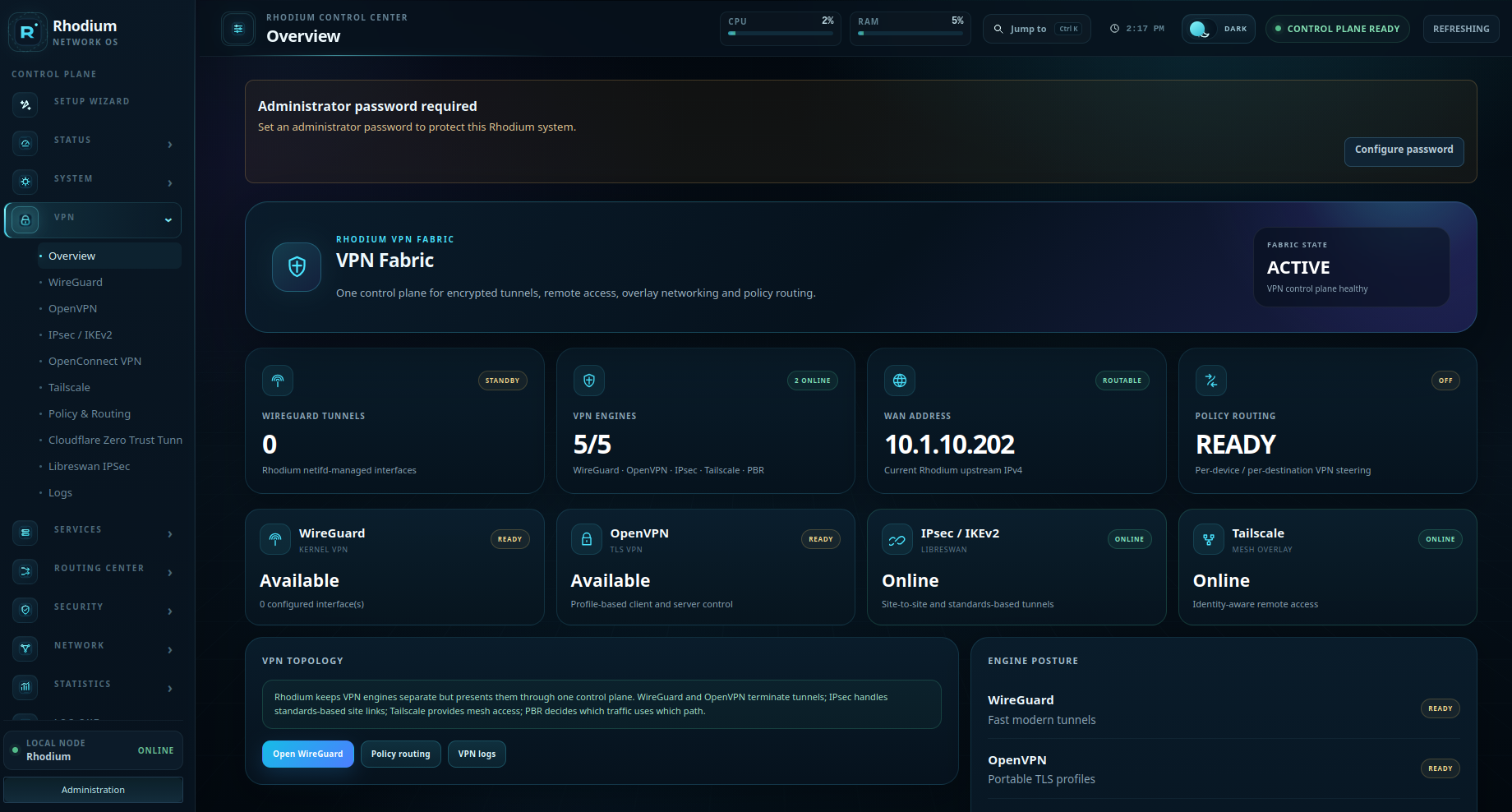
Full VPN Toolkit
Rhodium OS is built for much more than basic remote access.
Its networking stack supports modern VPN technologies and advanced deployment scenarios, including site-to-site connectivity, remote users, encrypted tunnels, and segmented lab environments.
WireGuard and other VPN technologies can be integrated directly into the system alongside routing, firewall, and policy controls.
Advanced Wireless Networking
Rhodium OS includes an extensive Linux wireless stack intended for everything from ordinary access points to more advanced deployments.
Depending on hardware and configuration, the platform can support technologies such as:
- WPA2/WPA3
- Wireless access point operation
- Wireless client modes
- Mesh networking
- Wireless roaming
- Travel-router configurations
- Scheduled wireless operation
- Advanced radio and interface diagnostics
Designed for Real Hardware and Virtualization
Rhodium OS is especially focused on x86 systems, allowing inexpensive PCs, mini PCs, industrial appliances, and virtual machines to become capable network appliances.
This makes Rhodium OS useful anywhere from a small fanless router to a multi-interface virtualization host.
It can also be deployed inside virtualization environments, making it ideal for network labs and infrastructure training.
Local First. Cloud Second.
Rhodium OS does not require the cloud to make your router useful.
Core networking and administration remain under your control and run locally on your infrastructure.
Cloud services can complement the platform where they make sense, but they are not intended to replace local administration or make basic functionality dependent on an external vendor.
Built for Tinkerers — Designed to Become More
Rhodium OS is for people who actually want to understand and control their networks.
It combines the openness of Linux, the package ecosystem of OpenWrt, and a growing collection of Rhodium-specific management and security features into a platform that can evolve with the environment running it.
Whether you’re building a home firewall, an engineering lab, a virtual network appliance, or an experimental edge platform, Rhodium OS gives you a foundation you can modify instead of a black box you simply have to accept.
Open. Local. Flexible. Powerful.
Welcome to Rhodium OS.


Installing Rhodium OS
Rhodium OS is distributed as a bootable disk image designed for x86-64 systems and virtual machines.
For most users, the easiest installation method is to write the Rhodium OS image directly to a USB drive or SSD using balenaEtcher, then boot the target system from that device.
Important: Writing the Rhodium OS image will erase the selected destination drive. Verify the correct USB drive, SSD, or virtual disk before continuing.
What You Need
Before installing Rhodium OS, prepare:
- A compatible x86-64 computer or appliance
- A USB flash drive, SSD, or other target storage device
- The latest Rhodium OS image
- Another Windows, Linux, or macOS computer for preparing the installation media
- balenaEtcher
- Ethernet connectivity for initial configuration
For router deployments, at least two network interfaces are recommended:
- One interface for WAN
- One interface for LAN
Additional interfaces can be used for VLANs, management networks, DMZs, labs, or other routed networks.
Method 1 — Install Using balenaEtcher
Step 1 — Download Rhodium OS
Download the latest Rhodium OS image from the Rhodium OS download page.
Depending on the release, the file may be distributed as an image such as:
rhodium-os-x86-64.img
or as a compressed image such as:
rhodium-os-x86-64.img.gz
balenaEtcher can normally write compressed images directly, so extracting the file may not be necessary.
Step 2 — Install balenaEtcher
Download and install balenaEtcher for your operating system.
balenaEtcher is available for:
- Windows
- Linux
- macOS
Launch balenaEtcher after installation.
Step 3 — Connect the Destination Drive
Connect the USB drive, SSD, or other storage device that will contain Rhodium OS.
Make sure there is nothing important stored on the device.
Everything on the selected destination drive will be erased.
Step 4 — Select the Rhodium OS Image
In balenaEtcher:
- Click Flash from file
- Select the downloaded Rhodium OS image
- Confirm that the correct image appears in Etcher
Compressed .img.gz images can normally be selected directly.
Step 5 — Select the Target Drive
Click:
Select target
Choose the USB drive or SSD that Rhodium OS should be written to.
Carefully verify the drive size and device name before continuing.
Do not select your operating system drive.
Step 6 — Flash Rhodium OS
Click:
Flash!
balenaEtcher will:
- Write the Rhodium OS image
- Verify the written data
- Report when the operation has completed
Do not disconnect the drive while flashing is in progress.
When Etcher reports that flashing is complete, safely remove the drive.
Booting Rhodium OS
Connect the Rhodium OS drive to the system that will run the operating system.
Power on the system and enter its BIOS or UEFI boot menu.
Common boot-menu keys include:
F12F11F10F9EscDelete
The exact key depends on the motherboard or computer manufacturer.
Select the drive containing Rhodium OS.
The system should begin booting Rhodium OS.
BIOS / UEFI Settings
Most systems should boot Rhodium OS with their normal firmware configuration.
If the system does not boot, check the following settings.
Boot Mode
Use:
UEFI
when supported.
Some older hardware may require legacy BIOS or CSM mode depending on the Rhodium OS image being used.
Secure Boot
If Rhodium OS does not boot with Secure Boot enabled, disable Secure Boot in the system firmware.
Boot Order
Place the Rhodium OS storage device ahead of other bootable drives, or manually select it from the one-time boot menu.
First Boot
The first startup may take slightly longer than normal while the system initializes networking, storage, and Rhodium OS services.
Connect a computer to the Rhodium OS LAN interface using Ethernet.
Your computer should normally receive an IP address automatically using DHCP.
Open a web browser and navigate to the management address configured by the Rhodium OS release.
For example:
http://192.168.1.1
The exact default address may vary between Rhodium OS versions, so check the release notes included with your download.
Network Interface Detection
On systems with multiple Ethernet interfaces, Rhodium OS may assign interfaces according to the order in which Linux detects them.
Typical interface names may include:
eth0eth1eth2enp1s0enp2s0
After logging into Rhodium OS, verify which physical interfaces correspond to:
- WAN
- LAN
- Management
- Additional networks
Do not connect an unknown interface directly to an untrusted network until its firewall role has been verified.
Installing Directly to an Internal SSD
Rhodium OS images may also be written directly to an internal SATA, NVMe, or other supported drive.
One simple method is:
- Remove the target SSD from the router or appliance
- Connect it to another computer using SATA, NVMe, or USB storage adapters
- Open balenaEtcher
- Select the Rhodium OS image
- Select the SSD
- Flash the image
- Reinstall the SSD into the Rhodium OS system
- Boot from the SSD
This eliminates the need for a separate installer environment.
Running Rhodium OS in a Virtual Machine
Rhodium OS can also be deployed as a virtual network appliance.
Typical platforms may include:
- XCP-ng
- Xen Orchestra
- Proxmox VE
- KVM/QEMU
- VMware
- Hyper-V
- VirtualBox
A basic Rhodium OS virtual machine should generally include:
- x86-64 virtual CPU
- 2 or more virtual CPU cores
- 1–2 GB RAM minimum
- 4 GB or more storage
- At least two virtual network interfaces
A common virtual configuration is:
NIC 1 — WAN
Connected to the upstream or external network.
NIC 2 — LAN
Connected to the internal, lab, or isolated network.
Additional virtual NICs can be added for VLANs, DMZ networks, management networks, or isolated student environments.
After Installation
Once Rhodium OS is running, complete the initial configuration before using it as your primary gateway.
Recommended first steps include:
- Set a strong administrator password
- Verify WAN and LAN interface assignments
- Configure the LAN IP range
- Verify DHCP operation
- Confirm DNS functionality
- Configure firewall policies
- Configure wireless interfaces if present
- Configure VPN services if required
- Review installed security services
- Install available Rhodium OS updates
- Back up the completed configuration
Troubleshooting
The System Does Not Boot
Check:
- BIOS/UEFI boot order
- Secure Boot settings
- Whether the image was successfully verified by balenaEtcher
- Whether the target system supports x86-64
- Whether the correct Rhodium OS image was downloaded
Try writing the image again if necessary.
balenaEtcher Cannot See the Drive
Try:
- Disconnecting and reconnecting the drive
- Using another USB port
- Restarting balenaEtcher
- Running Etcher with administrator privileges when required
- Checking whether the operating system detects the drive
The Web Interface Does Not Open
Verify:
- The Ethernet cable is connected to the LAN interface
- Your computer received an IP address
- You are connected directly to the Rhodium OS LAN
- The management IP matches the version you installed
You can inspect your computer’s assigned IP address to determine whether DHCP is functioning.
No Internet Connection
Verify:
- The WAN cable is connected to the correct interface
- The WAN interface received an address
- DNS servers are configured
- The default route is present
- Firewall rules permit outbound traffic
Some ISPs may also require DHCP lease renewal, VLAN configuration, PPPoE credentials, or modem rebooting when changing routers.
Upgrade Notes
Before upgrading Rhodium OS:
- Back up your configuration
- Read the release notes
- Verify that the release supports your hardware
- Review any major networking or package changes
Do not assume that every custom configuration will automatically migrate between major releases.
Recommended Installation Method
For most physical Rhodium OS deployments:
Download image → Flash with balenaEtcher → Install drive → Boot → Configure LAN/WAN → Secure the system
This provides the simplest and most reliable path from a downloaded Rhodium OS image to a functioning network appliance.